Linux is famous for having a lot of great text editors, so chances are that if you have some kind of text that you need to work on, Linux has an editor designed specifically for your purpose. A friend of mine was asking me about an Application to match BB Edit, an html editor for Mac. I had rarely used BB Edit when I used Macs, and have since then developed my own workflow of vim-kwrite-konqueror for my own little web coding projects, but I remembered an app called Quanta Plus, and decided to check it out on her behalf.
It seems to me that Quanta Plus certainly matches BB Edit's capabilities (as I hazily remember them) and perhaps even exceeds them in some ways. Let's take a look at Quanta Plus's features by recursively creating this very webpage.
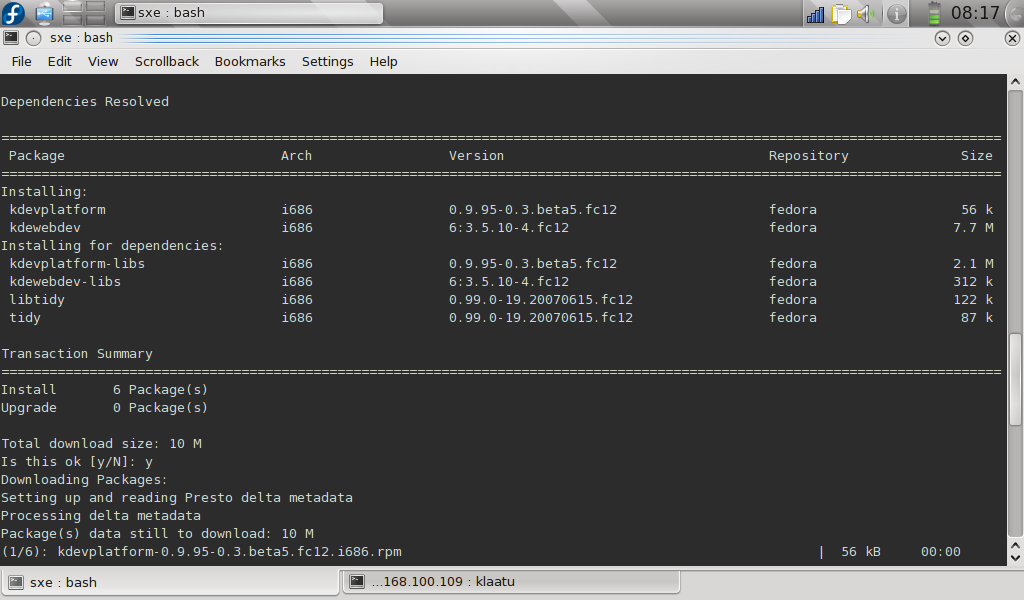
First thing you need to do is install Quanta Plus. My friend runs Fedora, so the install is pretty simple:
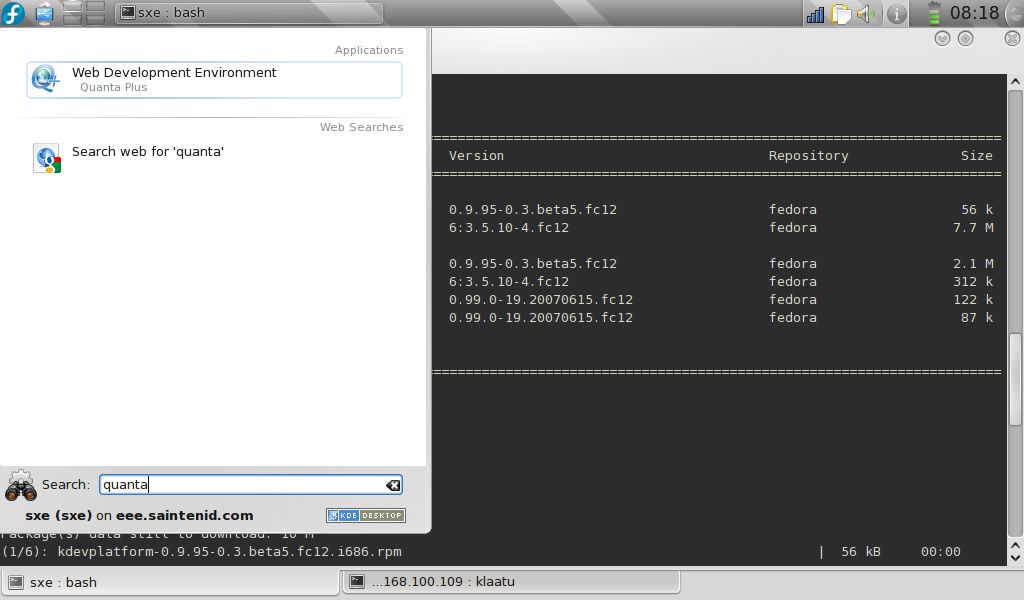
This installs Quanta Plus onto your system, and helpfully adds it to your K Menu. So, launch Quanta Plus by going to the K Menu and searching for Quanta.
You might, upon first launch, get a warning that you do not have Cervista installed, which is a helper application for CVS stuff. If you have no idea what that means, then you don't need it, so just click through the warning.
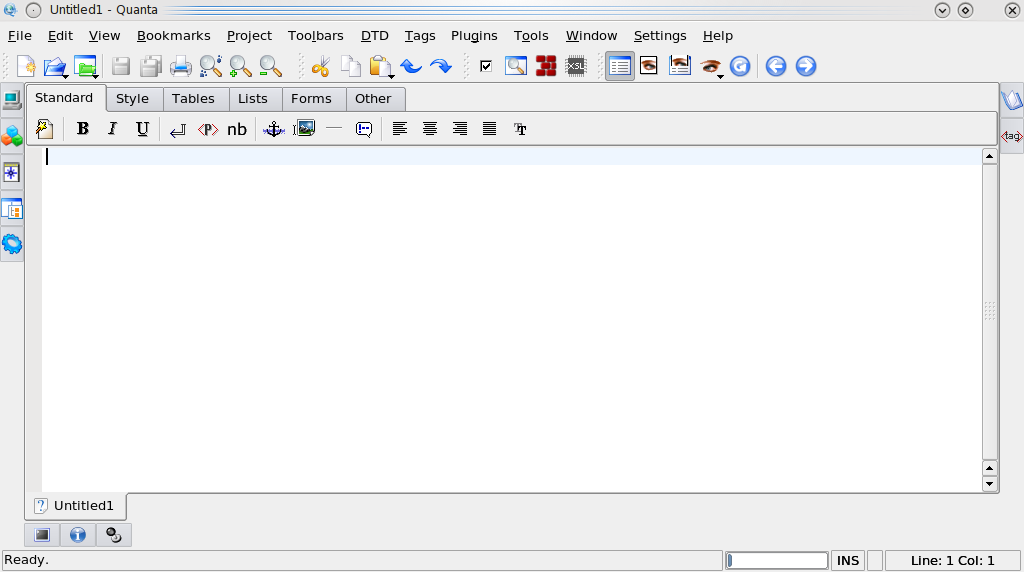
The interface for Quanta is quite rich, and it becomes obviously fairly quickly that Quanta straddles the web dev market somewhere between BB Edit and Dreamweaver, only a lot more free and a lot more flexible.
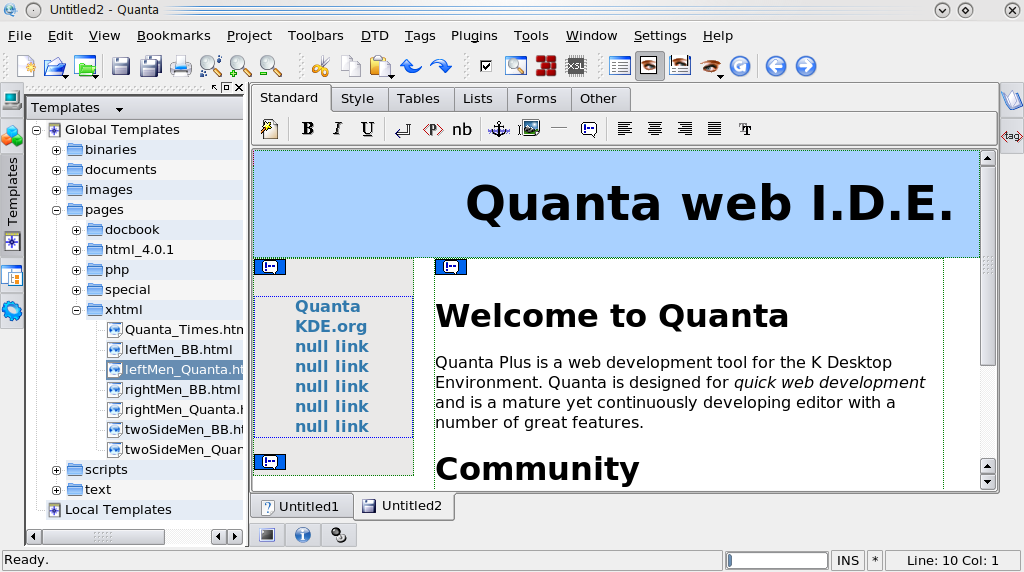
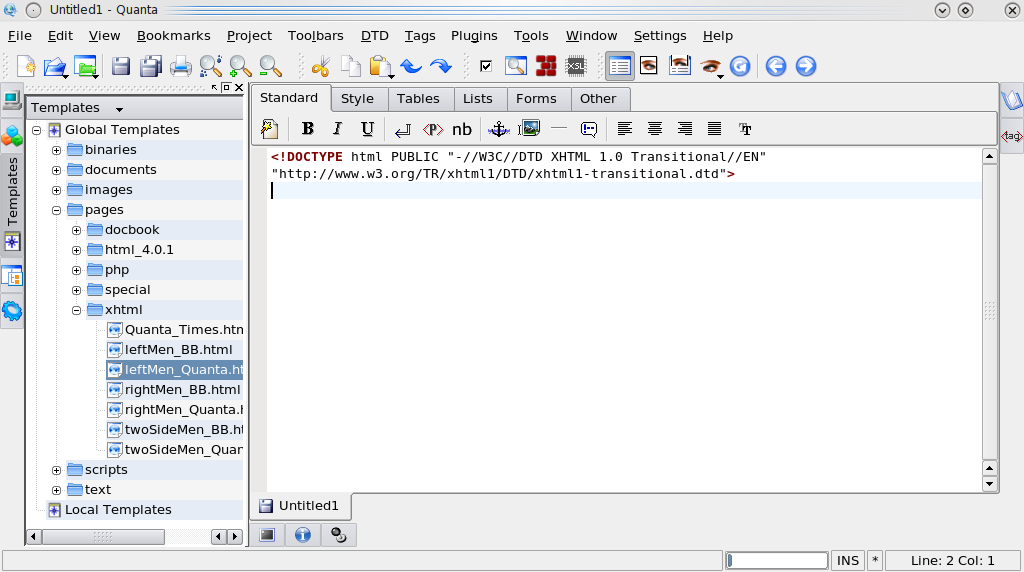
While Quanta can wrangle a lot of different kinds of text, we will concentrate on xHTML since that is what we need for this post. On the left of the Quanta window there are tabs, inluding one for Templates. Click this and it expands a panel on the left with many Template options; look in the Pages directory > xHTML. This opens a fully populated xHTML document, complete with xml version heading, DTD reference, and even space for css styling in the header.
Want to see this page in a more WYSIWYG context? Just click the VPL Editor button.
I rarely like to start with fully laid-out and pre-populated templates, so let's start from scratch, both in the text document that we're editing as well as with a brand new site. In other words, let's talk workflow.
If you're sitting down to start a website, or even to work on one that exists, you first want a directory with all the relevant files in it, or to which you can copy relevant files. In this way, you will have your entire website in one directory on your computer, and when it's time for the website to go live, then all you do is open up Filezilla (or similar) and upload everything in that directory. Easy.
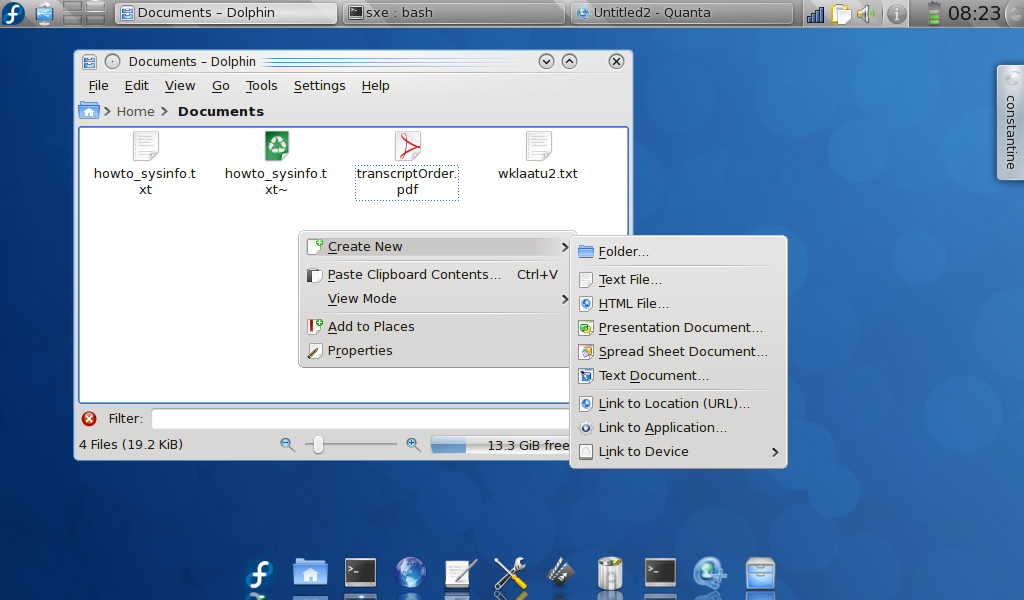
So, first step is to create a directory. You can do this in dolphin or your file manager of choice. I use dolphin, so I go to my Documents folder, right click inside of it, and select Create New > Folder. I name the folder something that makes sense like the name of the website I'm working on.
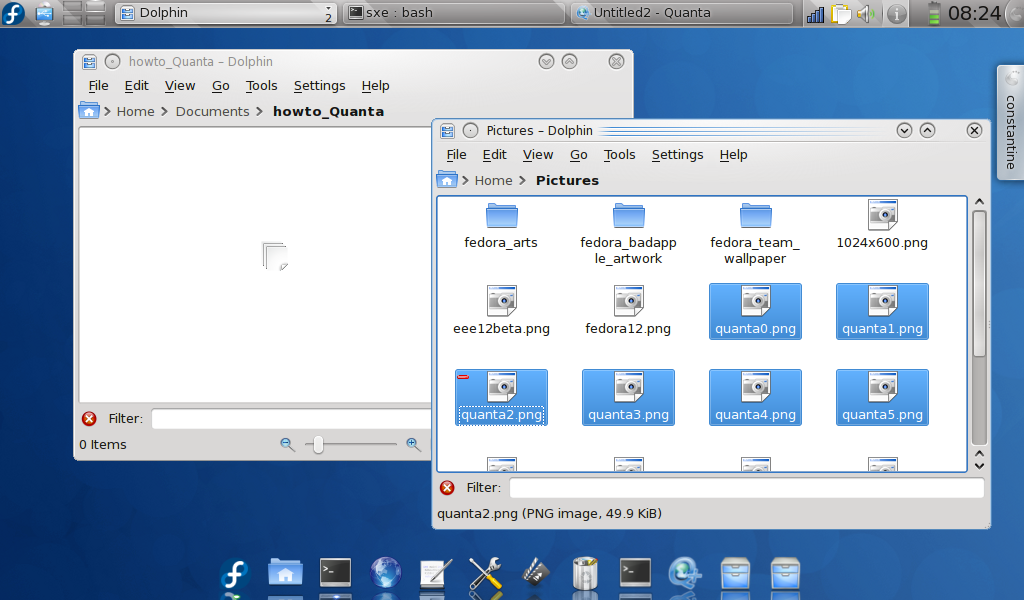
In the case of this post, I have screenshots that I want to accompany the page, so I need to now move all of my screenshots into the new directory. Do this by opening another dolphin window, and then dragging and dropping the files from where they are now to the web project folder that we just made.
Now go back to Quanta and start a new document. First thing's first, and that is to save the document. Yes, it's an empty document - but still, save it now. There are two reasons to do this:
So save the document now, and save it into your web project directory.
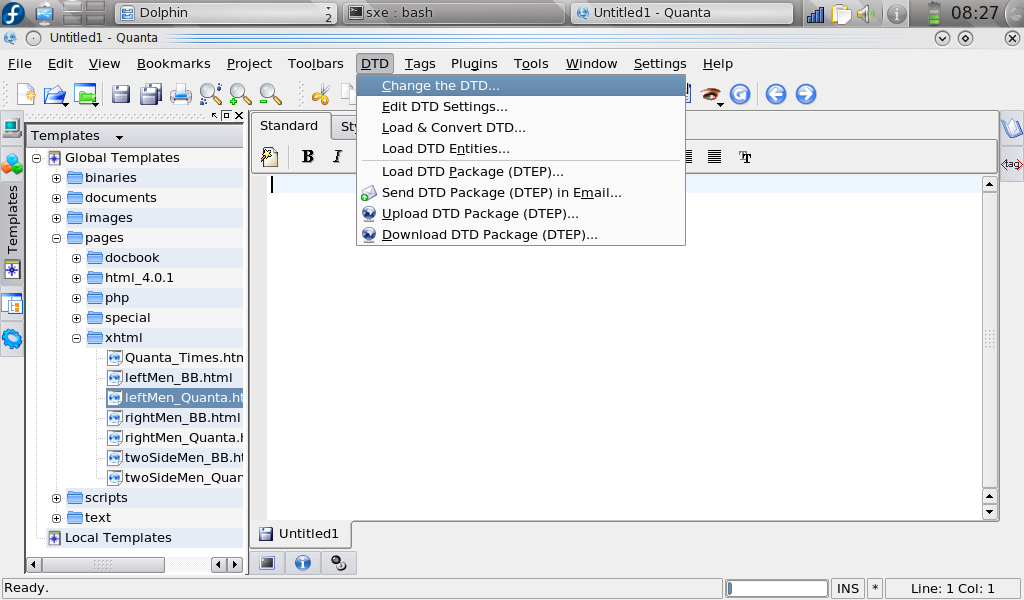
Next, we need to define for the web browsers of the world just what kind of document this is. I can never remember how to this beyond the initial xml version declaration, but Quanta can help. Go to the DTD menu > Change the DTD
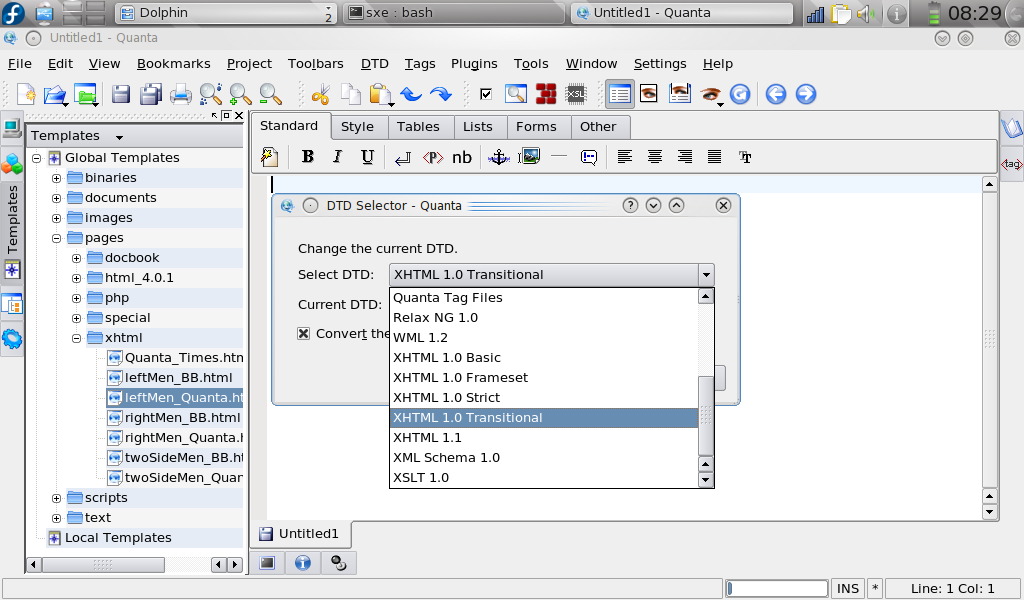
A DTD selector opens. Select from the drop down menu whatever kind of format you want your document to be; typically a good choice is xHTML Transitional, but you may choose something else if you know better. Make sure that the "Convert the document to selected DTD" is checked.
And, like magic, the appropriate headings are placed in your document for you.
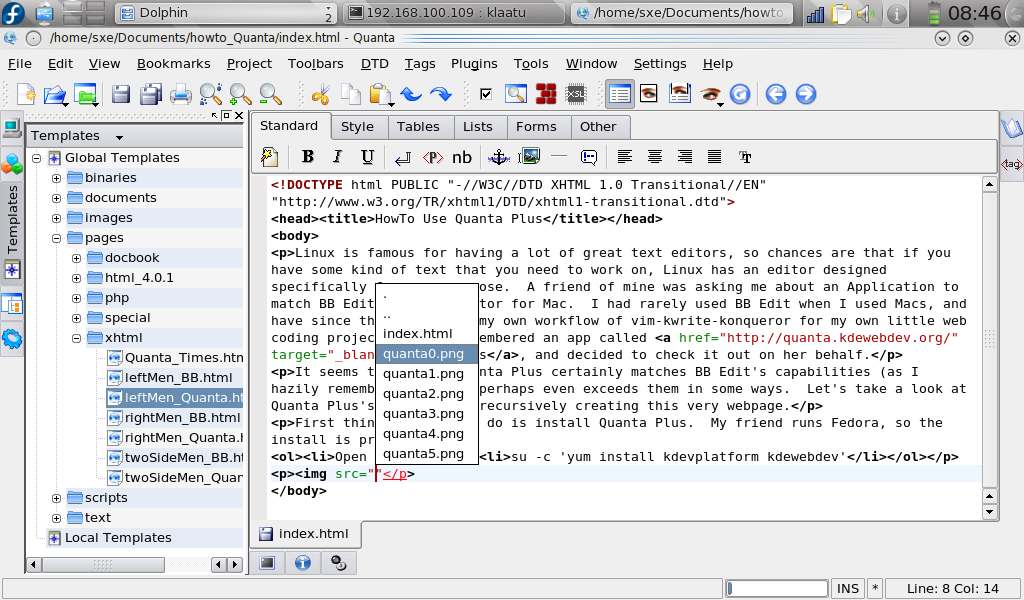
Now all that's left is to code. Start typing some html code and you'll find that the tags are recognized quite quickly. And when you type in one tag - like >p< for instance - the closing tag is automatically inserted after your cursor. For some tags, like >img< might have different possible attributes after them, so once you've typed "img" then you will see a "src" option shortly thereafter; hit RETURN to select the src tag and it will be inserted.
The really cool feature here is that since you are working in your web project folder, and in that folder there are, in this case, 10 screenshots, then when you type img src, Quanta provides a pop-up menu of all the screenshots and files in that directory. Selecting the screenshot you with to insert is as simple as arrowing through the list and hitting return. Quanta does not automatically insert an alt tag, so please remember to include one for people viewing your site in text browsers.
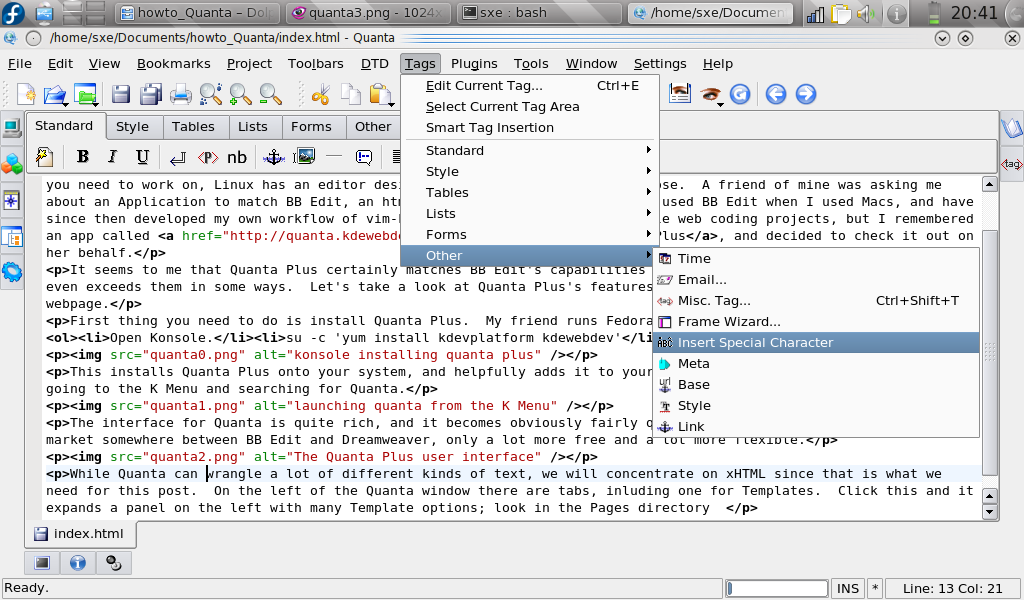
Another nice feature are the helpful menu selections in Quanta's menu toolbar. If you want to insert a special character, like an > or © or whatever, you used to have to either memorize the code for it or find a reference of ascii html character codes. With Quanta, you have only to go to the Tags menu > Other > Insert Special Characters and choose from the dialog box what character code you wish to insert.
Tabs along the top of your document provide easy style generation, like marking paragraphs as divs and aligning it for you, or making something a headline of various sizes, and so on.
There's a lot more that Quanta can do, but I think that covers the basics. So give it a try and see if you cant migrate yourself from BB Edit or Dreamweaver or whatever. Quanta gives you a lot of control over how you work while still providing you with a lot of helpful shortcuts to speed your work along. In my view, it manages not to dumb anything down, so if you find yourself in front of a computer without Quanta, then you'll most likely have most of the knowledge of how to code - which I don't think that many users of WYSIWYG editors can necessarily claim. So, try it out if you think it sounds helpful.